
Push notifications
Updated
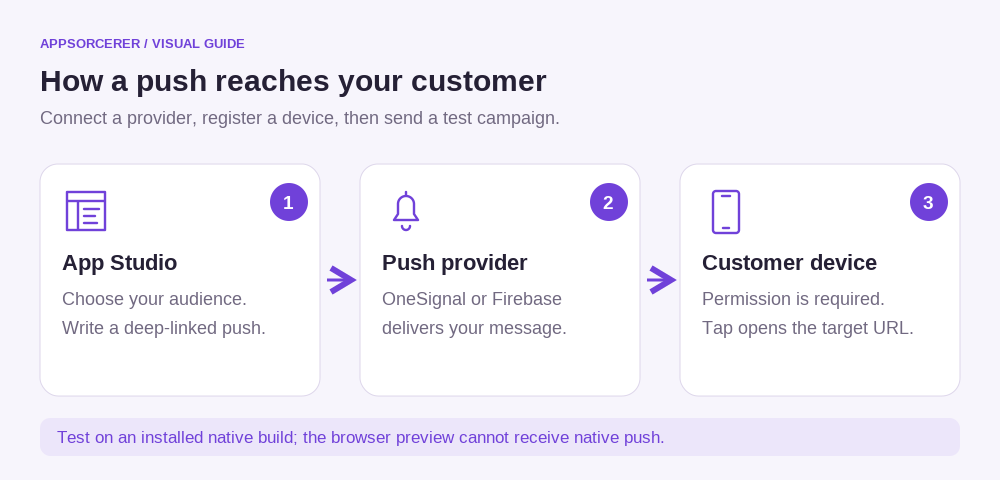
Send notifications to the people who installed your app: news, offers and order updates. Set it up once in Push Notifications, then send campaigns or turn on automations.
Choose a provider
Push notifications travel through a provider. Pick one under Provider:
- OneSignal — a separate OneSignal account, with its own dashboard and messaging tools.
- Firebase Cloud Messaging (FCM) — Google's service, through your own Firebase project.
Either way, App Studio sends your campaigns and keeps the list of devices.
Connect OneSignal
- Create an app in OneSignal and set up its Android platform, as OneSignal's guide describes.
- In OneSignal, open Settings → Keys & IDs and copy the App ID and the REST API key.
- Paste both in App Studio and connect. We check them with OneSignal and store the key encrypted; only its last characters are shown again.
Connect Firebase
- In the Firebase console, open your project (or create one) and add an Android app with your app's package name.
- Download google-services.json and upload it in App Studio. The app needs it to receive pushes.
- Open Project settings → Service accounts, press Generate new private key and upload that file as the Service-account key. It is stored encrypted and never shown again.
App Studio warns you when google-services.json belongs to another Firebase project or has no Android app for your package name.
Permission prompt and appearance
- Ask for permission on first launch — Android 13 and later ask people before an app may show notifications. Turn this off to ask at a better moment from your website with
AppSorcerer.push.register(). - Show notifications while the app is open — when off, notifications stay hidden while people use the app (your page still gets the
push.receivedevent). - Accent colour and Notification icon — the small icon on Android and its tint. Use a white PNG on a transparent background, 96 × 96 pixels.
These settings are part of the app, so they reach people with your next build.
Send a test push
Under Test push, pick a device and send yourself a message before you message everyone. Your team's test devices are listed first: choose Name this device once and your phone appears in Team & Access → Test devices for everyone.
Send a campaign
Write a title (up to 50 characters) and a message (up to 150), and optionally add an image and the page the notification opens. The lock-screen preview updates as you type. Send it now, or Schedule it; you can change or cancel a scheduled campaign until it goes out.
Choose an audience
| Audience | Who gets it |
|---|---|
| Everyone | Every device that allows notifications |
| Platform | Android or iOS devices |
| Country or language | From the phone's settings |
| Last active | People who opened the app in the last days, or who haven't for a while |
| User IDs | Devices your site linked with AppSorcerer.push.setExternalId(), up to 2,000 per campaign |
| Tags | Devices tagged with AppSorcerer.push.setTags(), like tier = gold |
| Segment | Shopify apps: VIP customers (2 or more orders placed in the app) or Cart abandoners (left a cart in the last days you choose) |
App Studio estimates the size of the audience before you send.
When push is paused or limited
AppSorcerer support can pause push for an app or a workspace, or limit how many pushes it may send per day, for example after spam complaints. The Push page then shows a banner that says what is going on, and sending, scheduled campaigns, test pushes and automations stop until the pause is lifted. Contact support if you think it's a mistake.
Link devices to your users
await AppSorcerer.push.register();               // ask for permission and register the device
await AppSorcerer.push.setExternalId('user-42'); // your own user ID, for "User IDs" campaigns
await AppSorcerer.push.setTags({ tier: 'gold' });
Results and limits
The campaign history shows how many devices each campaign was sent to and how many people opened it; Analytics shows the open rate over time. Your plan includes a number of pushes per month for the whole workspace — see Pricing — and the Push page shows how many you have used this month.