
JavaScript bridge
Updated
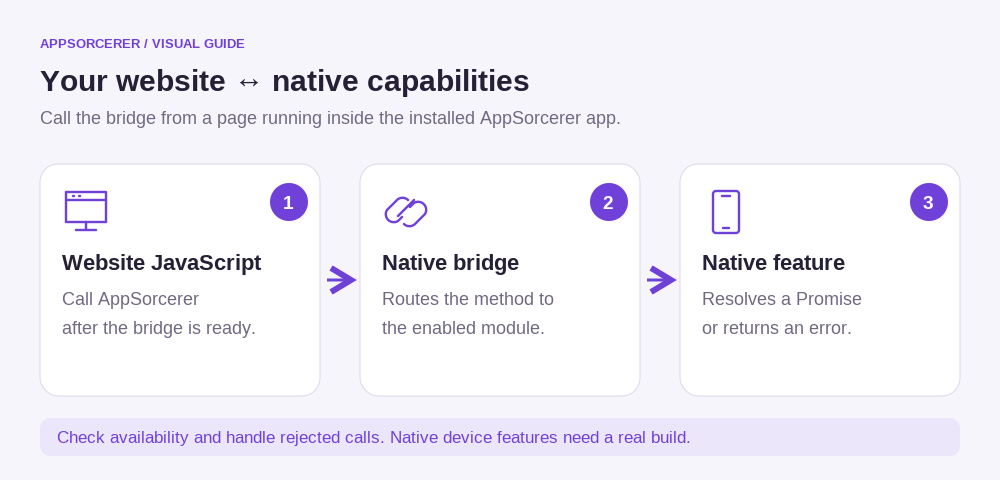
The JavaScript bridge lets your website use native features of the app: haptics, the share sheet, push notifications, the status bar, tab badges and every plugin you add. Your site keeps working in a normal browser; the bridge only exists inside the app.
Turn it on
The bridge is part of every app. In Web Overrides → JavaScript bridge:
- Mode — Embedded (the default) adds
window.AppSorcererto your pages, so any script can use it. NPM package adds no global; your site bundles the@appsorcerer/bridgepackage instead. While App Studio shows it as NPM package (coming soon), the package is not on npm yet, so use Embedded until you can select it. - Allowed URLs — only pages that match these patterns may use the bridge, one pattern per line, like link rules. Leave it empty to allow your own domain and its subdomains. Other pages and frames get no bridge. The list applies to both modes.
Which mode?
| Embedded (default) | NPM package | |
|---|---|---|
Plain <script> tags, page builders, Shopify themes | ✓ window.AppSorcerer | — |
| Bundled sites (React, Vue, Next.js, …) | ✓ (with or without the package) | ✓ with @appsorcerer/bridge |
| Global added to every allowed page | yes | no |
| App Studio preview | simulated window.AppSorcerer | simulated window.AppSorcerer (the package uses it) |
Pick NPM package only when your site is built with a bundler and you don't want an injected global. In that mode the package talks to the app itself, reads the app's settings (platform, version, plugins) and receives app events as appsorcerer:<event> events on window.
What NPM package mode changes for scripts you set up in App Studio. Without the global, code outside your bundle can't reach the bridge:
- Run JavaScript tab and menu items, top-bar actions and Web Overrides → Custom JavaScript cannot call
window.AppSorcerer. Call a function of your bundle instead (for example awindow.myShop.openScanner()you define next toimport { scanner } from '@appsorcerer/bridge'), or keep Embedded mode. - The app's own helpers keep working: the Haptics Light tap on every link and button setting and the Shopify cart badge still work. A page that sets the badge itself calls
cart.setCount(n)from the package. - The App Studio preview always simulates
window.AppSorcerer, so test NPM package behaviour in a test build.
Detect the app
if (window.AppSorcerer) {
  // inside the app (or the App Studio preview)
}
AppSorcerer.ready().then((app) => console.log(app.platform, app.version));
The bridge is there before your page's own scripts run. On phones with a very old WebView it can arrive a little later, so wrap early code in AppSorcerer.ready() or listen for the appsorcerer:ready event on window.
window.AppSorcerer.__native is true in the real app and __simulated is true in the App Studio preview. The user agent also contains the token set under Web Overrides → User agent (default AppSorcerer).
With the package, bridgeMode() tells you what the page sees: 'embedded', 'npm', 'simulated' (App Studio preview) or 'none' (a normal browser). In NPM package mode the app's settings arrive with its first answer, so await ready() before you read enabledPlugins() or a plugin's available():
import { bridgeMode, ready, scanner } from '@appsorcerer/bridge';

if ((await ready()) && scanner.available()) {
  const { value } = await scanner.scan({ formats: ['QR'] });
}
console.log(bridgeMode()); // 'embedded' | 'npm' | 'simulated' | 'none'
Call native features
Every call returns a Promise:
await AppSorcerer.share.open({ title: 'Jasmine green tea', url: location.href });When a call fails, the Promise rejects with an error that has a code and a friendly message:
| Code | Meaning |
|---|---|
UNAVAILABLE | The feature isn't in this app, for example the plugin isn't added |
NOT_ALLOWED | This page doesn't match the Allowed URLs |
INVALID_ARGS | An argument is missing or wrong |
UNKNOWN_METHOD | The feature has no such method |
PERMISSION_DENIED | The person refused a permission |
CANCELED | The person closed a native screen |
NATIVE_ERROR | Something else went wrong; see the message |
try {
  const { value } = await AppSorcerer.scanner.scan({ formats: ['QR'] });
  location.href = '/search?q=' + encodeURIComponent(value);
} catch (e) {
  if (e.code !== 'CANCELED') alert(e.message);
}
Core features
| Feature | Examples |
|---|---|
device | device.info() — platform, OS and app version, language, dark mode, safe area |
haptics | impact('light'), notification('success'), selection(), vibrate(200) |
share | share.open({ title, text, url }), also with files |
statusBar | statusBar.set({ style: 'light', color: '#16131C' }), { overlay: true }, { visible: false } |
push | register(), getToken(), setExternalId(id), setTags({ tier: 'gold' }), permissionStatus(), watchProduct(variantId, kind?), unwatchProduct(variantId?, kind?), productWatches() (Shopify apps: Back in stock / Price drop) |
nav | open(url), back(), refresh(), setTabBadge(tab, value), openInAppBrowser(url), openExternal(url) |
cart | cart.setCount(3) — the cart badge on tabs and the top bar |
screen | screen.keepOn(true) |
app | app.review(), app.openSettings('notifications') |
await AppSorcerer.nav.setTabBadge('tab_account', true); // a dot on the Account tab
await AppSorcerer.cart.setCount(2);
Shopify apps keep the cart badge up to date by themselves.
Events
AppSorcerer.on('push.opened', ({ url, campaignId }) => console.log('opened from a push', campaignId));
AppSorcerer.on('app.resume', () => refreshPrices());| Event | When |
|---|---|
push.received | A notification arrived while the app is open |
push.opened | The app was opened from a notification |
app.resume | The app came back to the front |
app.pause | The app went to the background |
Plugins send their own events too, like scanner.result.
Push from Braze and Intercom
Braze push campaigns and Intercom reply notifications need Push Notifications → Setup → Built-in FCM (your google-services.json) and your Firebase Cloud Messaging credentials in the Braze or Intercom dashboard. The app hands their messages and the push token to their SDKs, which show the notifications. Braze taps fire braze.pushOpened and arrivals braze.pushReceived, with { url, title, body, campaignId, extras }. Braze in-app messages and the Intercom messenger work without it.
Plugin features
Each plugin you add gets its own namespace, for example AppSorcerer.scanner, AppSorcerer.biometrics or AppSorcerer.onesignal. Check that it is there before you call it:
if (AppSorcerer.has('biometrics')) {
  await AppSorcerer.biometrics.authenticate({ reason: 'Unlock your account' });
}
Every plugin's guide in the Plugins section of this Help Center lists its methods and events. See Plugins.
In the App Studio preview
The preview simulates the bridge: calls show a message instead of the native feature and return a sample result, so your pages never break while you design. Try the real thing in a test build on your phone.
On the offline page
When there is no connection, the app shows its offline page (Interface → Offline page). That page has its own small helper, window.AppSorcererOffline:
| Call | What it does |
|---|---|
AppSorcererOffline.retry() | Reloads the page that failed |
AppSorcererOffline.listDownloads() | With the Offline Downloads plugin: a JSON string of the files saved on the phone, newest first, [{ id, title, fileName, mimeType, size, completedAt }]. "[]" without the plugin or when its List saved files on the offline page setting is off |
AppSorcererOffline.openDownload(id) | Opens a saved file with another app, no connection needed. Returns false for an unknown file |
The default offline page already lists saved files under Saved for offline. A custom offline page can build its own list:
<ul id="files"></ul>
<script>
  const files = JSON.parse((window.AppSorcererOffline && AppSorcererOffline.listDownloads && AppSorcererOffline.listDownloads()) || '[]');
  for (const f of files) {
    const li = document.createElement('li');
    li.textContent = f.title;
    li.onclick = () => AppSorcererOffline.openDownload(f.id);
    document.getElementById('files').appendChild(li);
  }
</script>
Error reports
When a plugin call fails unexpectedly, the app sends a plugin_error event with only the plugin, the method and the error code — never the arguments, messages or page data — to your app's analytics. It sends at most 5 per plugin, method and code, and 50 in total per device and day.
Expected outcomes aren't counted: the person canceled or refused (CANCELED, PERMISSION_DENIED, NOT_ALLOWED, CONSENT_REQUIRED), wrong calls (INVALID_ARGS, UNKNOWN_METHOD), UNAVAILABLE, TIMEOUT, NOT_FOUND, BUSY, and things the phone lacks (NO_HARDWARE, NOT_ENROLLED, NO_APP, STORAGE_FULL and similar). NOT_CONFIGURED is counted on purpose: the plugin is on but a required setting is missing, which you can fix in App Studio.
App crashes are reported the next time the app opens, as app_error with the message (without query strings, e-mail addresses or long numbers), a fingerprint and whether it closed the app. Both feed the App errors card in Analytics.