

Biometrics
Updated
Face ID and fingerprint unlock for signed-in customers.
- JavaScript:
window.AppSorcerer.biometrics - Plan: Plus (premium) — included on plans with premium plugins, and you can try it free for 14 days
- Platforms: Android apps today. iOS support arrives with iOS builds (coming soon).
- Android permissions:
USE_BIOMETRIC
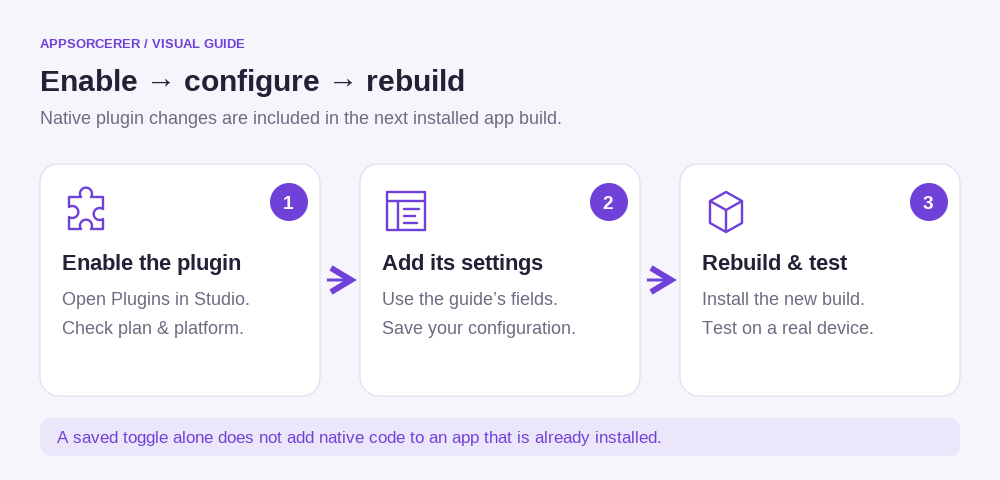
Turn the plugin on in App Studio → Plugins, fill in its settings, then rebuild your app. Websites call it through the JavaScript bridge.
Settings
| Studio label | Type | Default | Notes |
|---|---|---|---|
| Prompt title | text | "Unlock with biometrics" | |
| Lock the app on launch when credentials are saved | toggle | false |
Setup
Nothing to configure. Secrets are encrypted with a key kept in the phone's secure hardware (Android Keystore) and stored privately on the device. The key only works after a successful fingerprint or face check, so a secret can't be read without one, not even with the phone's PIN.
Languages: the prompt title, the Cancel button and the lock screen's Unlock button follow your app's languages (Interface → Localization). Leave Prompt title at its default to show it in the phone's language; a title you change is shown exactly as written. A title or cancelText passed from JavaScript always wins.
JavaScript API
Every method returns a Promise. Call it as await AppSorcerer.biometrics.<method>(args).
| Method | Arguments | Resolves with |
|---|---|---|
isAvailable | – | { available, strong, weak, deviceCredential, biometryType: 'fingerprint' | 'face' | 'iris' | 'multiple' | 'none', reason, hasSecret } |
authenticate | { title?, subtitle?, description?, cancelText = 'Cancel', allowDeviceCredential = false } | { success: true, type: 'biometric' | 'deviceCredential' } |
saveSecret | { secret, key = 'default', title?, subtitle?, description?, cancelText? } | { saved: true } (after the fingerprint or face check) |
getSecret | { key = 'default', title?, subtitle?, description?, cancelText? } | { secret } (after the fingerprint or face check) |
hasSecret | { key? } | { exists } |
deleteSecret | { key? } | { deleted } |
deleteAllSecrets | – | null |
lock | – | null — shows the lock screen now |
The prompt title defaults to the Prompt title setting. Strong biometrics are used when available, otherwise weak (face unlock on some devices); allowDeviceCredential lets the PIN/pattern unlock too.
Events
Listen with AppSorcerer.on('<event>', callback) (or the DOM event appsorcerer:<event>).
| Event | Data |
|---|---|
biometrics.unlocked | {} — the launch lock screen was unlocked |
biometrics.lockFailed | { code } — an unlock attempt from the lock screen failed or was cancelled |
Errors
Rejections carry error.code: canceled, lockout, lockout_permanent, not_enrolled, not_available, no_hardware, no_device_credential, security_update_required, unsupported, timeout, auth_failed, not_found, secret_unavailable, storage_failed, busy, unavailable, invalid_args, unknown_method.
Example
// After a successful password login:
await AppSorcerer.biometrics.saveSecret({ secret: JSON.stringify({ email, refreshToken }) });

// Next visit:
if ((await AppSorcerer.biometrics.hasSecret()).exists) {
  const { secret } = await AppSorcerer.biometrics.getSecret({ title: 'Sign in to My Shop' });
  await signInWith(JSON.parse(secret));
}
Notes
- Lock the app on launch shows a lock screen at startup when at least one secret is saved, and asks for biometrics or the device PIN. Pressing Back closes the app.
- Saving and reading secrets needs a fingerprint or face unlock that Android rates as strong; the PIN alone isn't enough.
- If a fingerprint or face is added or removed, or the phone's screen lock is reset, saved secrets can no longer be read:
getSecretremoves them and rejects withsecret_unavailable.