

Document Scanner
Updated
Scan receipts and documents with edge detection.
- JavaScript:
window.AppSorcerer.documentScanner - Plan: Plus (premium) — included on plans with premium plugins, and you can try it free for 14 days
- Platforms: Android apps today. iOS support arrives with iOS builds (coming soon).
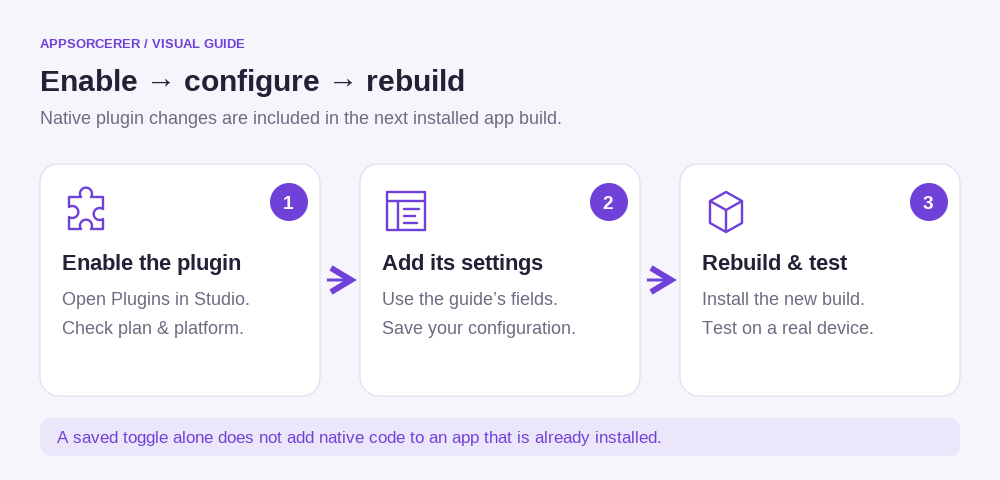
Turn the plugin on in App Studio → Plugins, fill in its settings, then rebuild your app. Websites call it through the JavaScript bridge.
Settings
| Studio label | Type | Default | Notes |
|---|---|---|---|
| Output | select | "PDF" | options: PDF, JPEG |
| Maximum pages per scan | number | 10 |
Setup
Nothing to configure. The scanner screen (edge detection, cropping, filters) comes from Google Play services and is downloaded the first time it's needed, so your app doesn't need to ask for camera access.
JavaScript API
Every method returns a Promise. Call it as await AppSorcerer.documentScanner.<method>(args).
| Method | Arguments | Resolves with |
|---|---|---|
scan | { output?: 'PDF' | 'JPEG' | 'BOTH', maxPages?, galleryImport = true, mode?: 'full' | 'filter' | 'base', maxBytes = 8000000 } | { pageCount, pdf?: { dataUrl, size, pageCount }, pages?: [{ dataUrl, size, width, height }] } |
isAvailable | – | { available } (Google Play services present) |
output and maxPages default to the plugin settings (PDF, 10). Data URLs are size-guarded: a PDF larger than maxBytes rejects with too_large; JPEG pages are re-encoded smaller (2000 → 1600 → 1200 px) until they fit.
Errors
Rejections carry error.code: canceled, scan_failed, too_large, busy, unavailable, unknown_method.
Example
const scan = await AppSorcerer.documentScanner.scan({ output: 'PDF', maxPages: 5 });
const blob = await (await fetch(scan.pdf.dataUrl)).blob();
const form = new FormData();
form.append('receipt', blob, 'receipt.pdf');
await fetch('/api/receipts', { method: 'POST', body: form });
Notes
- Phones without a camera can still install your app.
- Keep
maxBytesmodest: the scanned file is passed to your page as text.