
Connect your Shopify store
Updated
Install AppSorcerer from Shopify and connect the store to your AppSorcerer account once. We then set up your app for you.
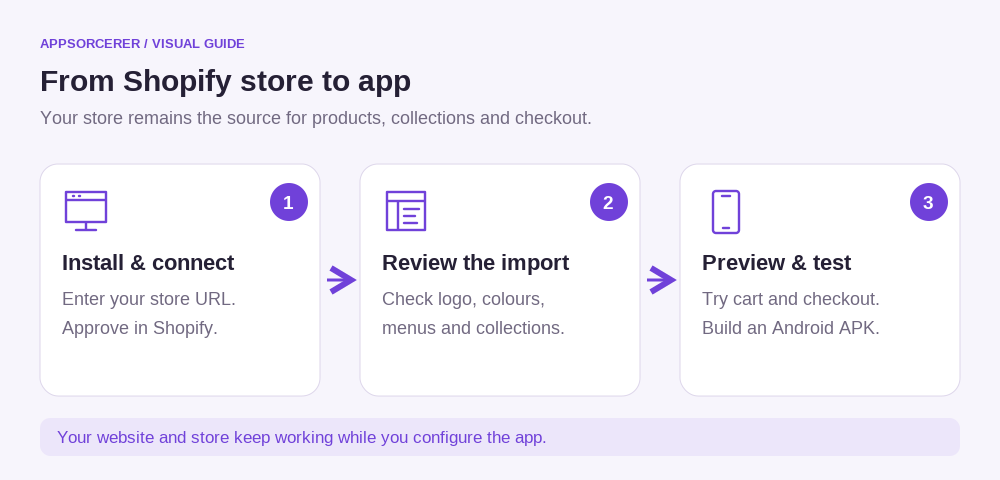
Install the app
- Open the Shopify page and enter your store address, for example
your-store.myshopify.com. - Shopify asks you to approve the app's permissions. Press Install.
- New to AppSorcerer? Create your account (we pre-fill your store email) and confirm your email; we then connect your store and set up your app. Already have an account? Sign in, and we connect the store to it.
What we import
- your shop name, your storefront's icon and theme colour (importing the logo and brand colours from your Shopify brand settings is available with our next Shopify app update)
- your main menu and footer menu, which become the app's sidebar
- tabs for Home, Collections, Search, Cart (with a live item count) and Account
- link rules for checkout, Shop Pay and customer accounts, so they keep working inside the app
The setup takes a minute or two. If you leave the setup screen, we email you when your app is ready, or if the setup needs your help.
Billing
Paid plans appear as a recurring charge on your Shopify invoice. You approve every change in your Shopify admin, and you can cancel any time by switching to the Free plan.
Signing in later
Once your store is connected, open AppSorcerer from your Shopify admin and you are signed in to your store's workspace in App Studio. A short page inside your Shopify admin that shows your store, your plan and your latest build is available with our next Shopify app update.
Next: turn on Shopify push automations such as abandoned-cart reminders.