

Offline Downloads
Updated
Save PDFs, audio and video for offline use.
- JavaScript:
window.AppSorcerer.downloads - Plan: Plus (premium) — included on plans with premium plugins, and you can try it free for 14 days
- Platforms: Android apps today. iOS support arrives with iOS builds (coming soon).
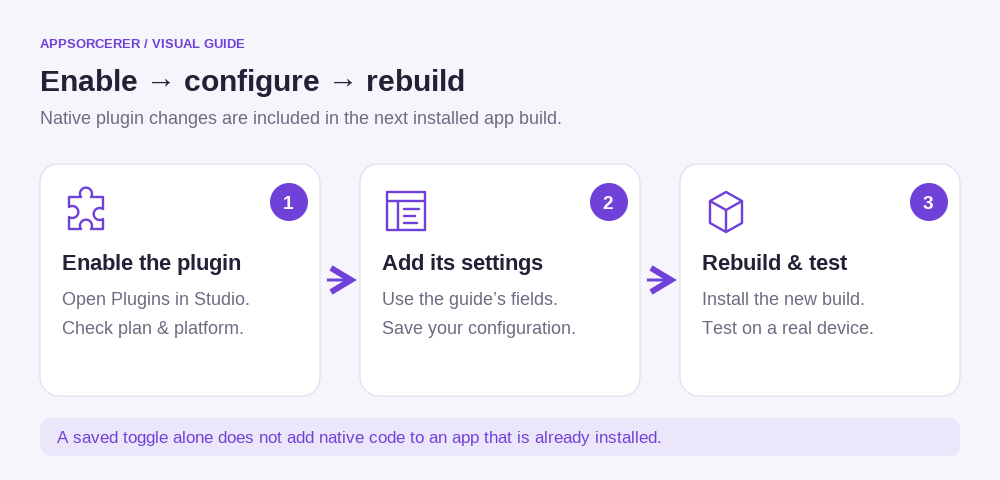
Turn the plugin on in App Studio → Plugins, fill in its settings, then rebuild your app. Websites call it through the JavaScript bridge.
Settings
| Studio label | Type | Default | Notes |
|---|---|---|---|
| File types | list | ["PDF", "Audio", "Video"] | options: PDF, Audio, Video, Images |
| Maximum storage (MB) | number | 1024 | |
| List saved files on the offline page | toggle | true |
Setup
Nothing to configure beyond file types and the storage limit. Files are saved in the app's own storage, so no storage permission is needed. The page's cookies are sent with each download, so files behind a login work.
Using saved files offline
When the phone has no connection, your website can't load and the app shows its offline page. With this plugin the default offline page lists the finished files under Saved for offline (newest first: title, size, file type), and a tap opens the file with a viewer app — no connection needed. The heading and messages follow your app's languages. Turn off List saved files on the offline page to hide the list.
A custom offline page (Interface → Offline page → Custom) can build its own list:
<script>
  const files = JSON.parse((window.AppSorcererOffline && AppSorcererOffline.listDownloads && AppSorcererOffline.listDownloads()) || '[]');
  // [{ id, title, fileName, mimeType, size, completedAt }]
  files.forEach((f) => addRow(f.title, () => AppSorcererOffline.openDownload(f.id)));
</script>
AppSorcererOffline.listDownloads() returns a JSON string ("[]" when the setting is off); AppSorcererOffline.openDownload(id) returns false for an unknown file. See JavaScript bridge.
JavaScript API
Every method returns a Promise. Call it as await AppSorcerer.downloads.<method>(args).
| Method | Arguments | Resolves with |
|---|---|---|
download | { url, fileName?, title?, mimeType?, headers?: {}, allowMetered = true } | the new entry (status: 'pending') |
list | – | all entries (statuses refreshed) |
get (alias getStatus) | { id } | entry |
open | { id } | { opened: true } — opens the file in a viewer app |
delete (aliases remove, cancel) | { id } | { deleted } — also cancels running downloads |
deleteAll | – | null |
getUsage | – | { usedBytes, maxBytes, count } |
Entry: { id, url, fileName, title, mimeType, status: 'pending' \| 'running' \| 'paused' \| 'completed' \| 'failed', reason, size, downloadedBytes, totalBytes, progress (0–1), createdAt, completedAt }. Relative URLs resolve against the start URL.
Events
Listen with AppSorcerer.on('<event>', callback) (or the DOM event appsorcerer:<event>).
| Event | Data |
|---|---|
downloads.completed | entry |
downloads.failed | entry with reason (type_not_allowed, storage_full, insufficient_space, http_404, canceled, …) |
Errors
Rejections carry error.code: invalid_args, type_not_allowed, storage_full, storage_unavailable, not_found, not_ready, no_app, open_failed, download_failed, unavailable, unknown_method.
Example
const file = await AppSorcerer.downloads.download({ url: '/files/lookbook.pdf', title: 'Lookbook' });

AppSorcerer.on('downloads.completed', (entry) => {
  if (entry.id === file.id) showOfflineBadge(entry);
});

await AppSorcerer.downloads.open({ id: file.id });
Notes
- File types (PDF, Audio, Video, Images) are checked before downloading when the type is known, and again when the download finishes.
- Maximum storage blocks new downloads once it is reached; a download that goes over the limit is removed and reported as
storage_full. - Progress is not pushed continuously; call
get({ id })if you need it.