

Firebase Analytics
Updated
Screen views, events and funnels in your Firebase project.
- JavaScript:
window.AppSorcerer.firebaseAnalytics - Plan: Essential — included in every plan
- Platforms: Android apps today. iOS support arrives with iOS builds (coming soon).
- Needs: your Firebase
google-services.jsonfile, uploaded in Push Notifications
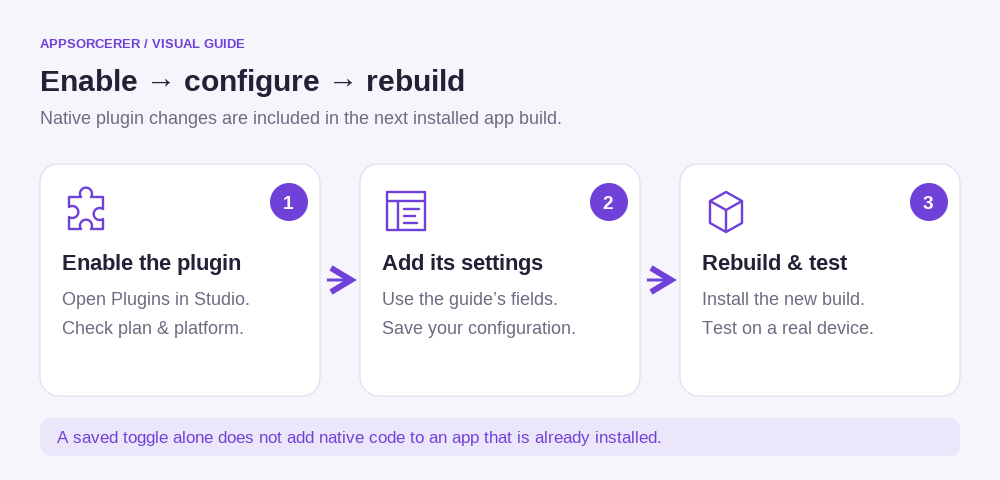
Turn the plugin on in App Studio → Plugins, fill in its settings, then rebuild your app. Websites call it through the JavaScript bridge.
Settings
| Studio label | Type | Default | Notes |
|---|---|---|---|
| Log a screen view for every page | toggle | true | |
| Collect data by default | toggle | true |
Setup
Upload your google-services.json file in Push Notifications. Without it the plugin stays off and calls reject with not_configured.
JavaScript API
Every method returns a Promise. Call it as await AppSorcerer.firebaseAnalytics.<method>(args).
| Method | Arguments | Notes |
|---|---|---|
logEvent | { name, params? } | Names/keys are cleaned to Firebase rules (letters, digits, _, max 40); string values max 100 chars; items arrays of objects become Bundle arrays (ecommerce). Needs consent |
logScreenView | { screenName, screenClass = 'WebView' } | Needs consent |
setUserId | { userId } (null clears) | Needs consent (clearing always works) |
setUserProperty | { name, value } | name max 24, value max 36. Needs consent (clearing with value: null always works) |
setCollectionEnabled | { enabled } | Always works |
setDefaultParams | { params } (null clears) | Needs consent (clearing always works) |
setConsent | { analyticsStorage?, adStorage?, adUserData?, adPersonalization? } (booleans) | Consent Mode v2. Always works |
getAppInstanceId | – | { appInstanceId }. Needs consent |
resetAnalyticsData | – | Always works |
Shopper consent
The plugin respects each shopper's consent decision from your store's Shopify Customer Privacy API (window.Shopify.customerPrivacy) — the same API your Shopify cookie banner uses.
- Before every automatic screen view and every call marked Needs consent, the app asks the page whether
Shopify.customerPrivacy.analyticsProcessingAllowed()is true. - Allowed: the event is sent. Not allowed (including "not decided yet" in regions that require consent): the screen view is skipped and the call rejects with
consent_denied; nothing is sent to Firebase. - When the shopper accepts or declines in the cookie banner (Shopify's
visitorConsentCollectedevent), the app remembers the new choice for your store for the rest of the session. - If your store's consent API loads late, the app asks again for up to 1.5 seconds before deciding. Websites that are not Shopify stores, or stores without the consent API, keep working as before: your website decides what to send.
- The app never turns collection on or off by itself — Collect data by default and
setCollectionEnabledkeep working as described below.
Errors
Rejections carry error.code: not_configured, invalid_args, unavailable, unknown_method, consent_denied (the shopper has not consented to analytics — expected on stores with a cookie banner; handle it quietly).
Example
await AppSorcerer.firebaseAnalytics.logEvent({
  name: 'add_to_cart',
  params: { currency: 'EUR', value: 29.9, items: [{ item_id: 'SKU-1', item_name: 'Mug', quantity: 1 }] },
});
Notes
- Log a screen view for every page logs
screen_viewwith the page path asscreen_nameand the page address without its query string or#fragmentaspage_location(so e-mail addresses, tokens or order numbers in links are never sent). It only runs when the shopper has consented (see Shopper consent). - Collect data by default decides whether Analytics collects data from the first launch.