

Social Login
Updated
Native Sign in with Apple and Google, passed to your website session.
- JavaScript:
window.AppSorcerer.socialLogin - Plan: Essential — included in every plan
- Platforms: Android apps today. iOS support arrives with iOS builds (coming soon).
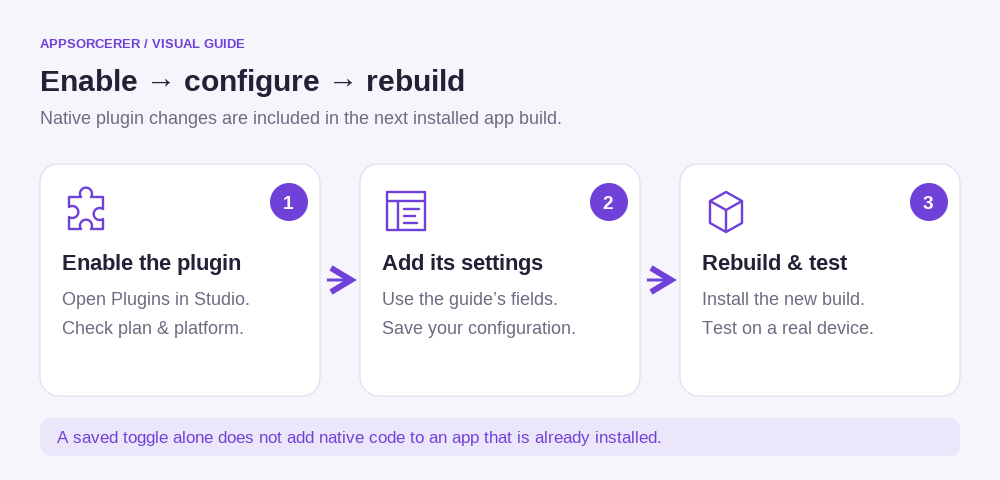
Turn the plugin on in App Studio → Plugins, fill in its settings, then rebuild your app. Websites call it through the JavaScript bridge.
Settings
| Studio label | Type | Default | Notes |
|---|---|---|---|
| Google Web client ID | text | – | From Google Cloud Console → Credentials. |
| Apple Services ID (iOS) | text | – | |
| Send the token to this page | text | – | required |
Setup
- In Google Cloud Console, create (or reuse) an OAuth Web application client and paste its ID in Google Web client ID.
- Also create an Android OAuth client with your app's package name and the SHA-1 fingerprint of its signing key (shown in App Studio under Publish). Without it Google returns no account.
Apple (signs in through a secure browser tab)
- In Apple Developer, create a Services ID (the "Apple Services ID" setting) with Sign in with Apple enabled and your website's endpoint as the Return URL.
- That endpoint receives Apple's
form_post(code,id_token,state,user). Verify the token, then redirect the browser to thereturnUrlfound instate(base64url JSON{ nonce, returnUrl, provider }), passing the values along:
302 → appsorcerer-auth://social-login/<your package name>/apple?id_token=…&code=…&state=… (or ?error=…)The app picks the result up from that link. Pass state back unchanged (also with error): the app only accepts a link for a sign-in it started in the last 10 minutes, with the same state and an Apple ID token for your Services ID and the app's nonce. Any other link is ignored.
JavaScript API
Every method returns a Promise. Call it as await AppSorcerer.socialLogin.<method>(args).
| Method | Arguments | Resolves with |
|---|---|---|
signIn | { provider: 'google' | 'apple', redirect = true, nonce? } + provider options below | Google: { provider, idToken, id, email, name, givenName, familyName, picture, phoneNumber } · Apple: { provider, idToken, code, state, id, email, name, user } |
signInWithGoogle / signInWithApple | same options | same |
signOut | – | null — clears Credential Manager's saved Google sign-in state |
isAvailable | – | { google, apple } (configured or not) |
Google options: mode: 'button' (default, "Sign in with Google" sheet) or 'bottomSheet' (One Tap style), filterByAuthorizedAccounts, autoSelect, webClientId (overrides the setting). Apple options: redirectUri, clientId (overrides the Services ID), scope (default "name email").
With redirect (default true) and a callbackUrl set, the app then opens callbackUrl#provider=google&id_token=…&email=…&name=… — the token is in the URL fragment, so it never reaches server logs; read it with JavaScript.
Events
Listen with AppSorcerer.on('<event>', callback) (or the DOM event appsorcerer:<event>).
| Event | Data |
|---|---|
socialLogin.result | Apple result (also emitted when the app was restarted while the user was in the browser) |
Errors
Rejections carry error.code: canceled, no_credential, sign_in_failed, not_configured, no_browser, unavailable, invalid_args, unknown_method.
Example
const result = await AppSorcerer.socialLogin.signIn({ provider: 'google', redirect: false });
await fetch('/api/auth/google', {
  method: 'POST',
  headers: { 'Content-Type': 'application/json' },
  body: JSON.stringify({ idToken: result.idToken }),
});
Notes
- Always verify ID tokens on your server (audience = your Web client ID or Services ID).
- Closing the Apple sign-in tab without finishing rejects with
canceled.