How to Turn Your Website Into an Android App (2026)
You can turn a website into an Android app without code by wrapping it in a native app shell. Here is the full AppSorcerer flow, from a free test APK to a Google Play release, with Google's 2026 rules.
On this page
- Key takeaways
- What is a website app?
- What do you need before you start?
- A website that works well on a phone
- A Google Play developer account
- Step 1: Enter your website address
- Step 2: Check the name, icon and colours
- Step 3: Add native navigation
- Step 4: Decide where links open and what offline looks like
- Step 5: Turn on push notifications
- Step 6: Build a test APK and install it
- Step 7: Build the store version and back up your signing key
- Step 8: Publish on Google Play
- Closed testing for new personal accounts
- Data safety, target API level and developer verification
- Will Google Play accept a website app?
- What does it cost?
- Frequently asked questions
- Can I convert my website to an Android app for free?
- Do I need Android Studio or code?
- Will my app update when I change my website?
- Can my website app send push notifications?
- What's the difference between an APK and an AAB?
You can turn a website into an Android app without writing code by placing it inside a native app shell, called a WebView, that adds an app icon, a splash screen, native tabs, push notifications and an offline screen. In AppSorcerer you enter your website address, adjust the app in App Studio and build a free test APK, which usually takes 4–6 minutes. A paid plan adds the signed store build (AAB) that Google Play needs. If your Play developer account is a new personal account, allow at least two extra weeks for Google's closed test.
Key takeaways
- A website app shows your mobile site inside a native Android shell. Changes to your site's content appear in the app without a new build.
- AppSorcerer's Free plan builds Android test APKs with a watermark. Store builds for Google Play start on the Starter plan.
- Google Play charges a one-time $25 registration fee. New personal accounts must run a closed test with 12 testers for 14 days before the app can go public.
- Google removes apps that are only a website in a frame, so add real app features: native navigation, push and an offline screen.
- AppSorcerer builds Android apps today. iOS is coming soon.
What is a website app?
A website app (or WebView app) is an Android app whose main screen is your website. Android's WebView "lets you display web pages as a part of your activity layout", without a browser's address bar or navigation controls (Android Developers). The builder adds the native parts around your site: the home-screen icon, a splash screen, bars and tabs, push notifications, an offline page and optional device features such as a QR scanner.
A fully native app rebuilds every screen in Android code instead. A website app is faster and cheaper to launch, and it is only as good as your mobile site.
Last checked: 12 November 2026.
What do you need before you start?
A website that works well on a phone
Open your site on an Android phone. Pages should load quickly, buttons should be easy to tap, and sign-in, forms or checkout should work. The app loads the same pages, so problems on the mobile site show up in the app too.
A Google Play developer account
Google charges a US$25 one-time registration fee and offers two account types, personal and organisation (Play Console Help).
- Personal accounts suit individuals. Those created after 13 November 2023 must run a closed test with at least 12 testers for 14 days before the app can go public (Play Console Help).
- Organisation accounts are for businesses and need a D-U-N-S number (Play Console Help).
Both go through identity verification, and Google may ask for a government ID and a payment card in your legal name.
Last checked: 12 November 2026.
Step 1: Enter your website address
On the AppSorcerer home page, type your website address and press Build my app — free. Create your account with your email or Google, then open the confirmation link we send you. The Help Center guide Create your first app covers these first steps.
Step 2: Check the name, icon and colours
The setup wizard reads your site and suggests an app name, an icon, brand colours and a starting navigation layout. Check them in App Studio:
- In Branding → App icon, upload a square 1024 × 1024 PNG if the suggested icon looks blurry. App Studio doesn't crop wide logos, so make the file square first.
- Pick a splash screen: your icon on a colour, a full image or a short animation.
- Set your primary colour and the light and dark values for bars and tabs.
Step 3: Add native navigation
Native navigation is the first thing that makes a website feel like an app. Open Navigation and click the part of the phone you want to change:
- Bottom tabs: up to 5, each with a short label, an icon and a page. Home, Shop, Search and Account are common.
- Side drawer: a menu that slides in from the side, for sites with many sections.
- Top bar: a title bar with an optional back button.
Then hide your site's own header inside the app with a few lines of CSS in Web Overrides → Custom CSS; web visitors still see it.
Step 4: Decide where links open and what offline looks like
In Link Handling, each rule sends matching links In the app, to an In-app browser sheet, or Outside the app (the phone's browser or another app). The first matching rule wins, and links that match no rule open in the app, so add rules for social networks, maps and payment or booking sites you don't control.
In Interface → Offline page, choose the default page (your colours and a Try again button) or upload your own HTML. The app reloads by itself when the connection returns.
Step 5: Turn on push notifications
Push is the main thing an app does that a mobile site does poorly. Connect a provider under Push Notifications:
- OneSignal: paste your App ID and REST API key.
- Firebase Cloud Messaging: upload google-services.json and a service-account key from the Firebase console.
On Android 13 and later, notifications are off for newly installed apps until the person allows them (Android Developers). Your app asks on first launch by default, or you can ask at a better moment from your site with AppSorcerer.push.register(). Campaigns have a title of up to 50 characters and a message of up to 150; send a Test push to yourself first. See the push notifications guide for audiences and scheduling.
Last checked: 12 November 2026.
Step 6: Build a test APK and install it
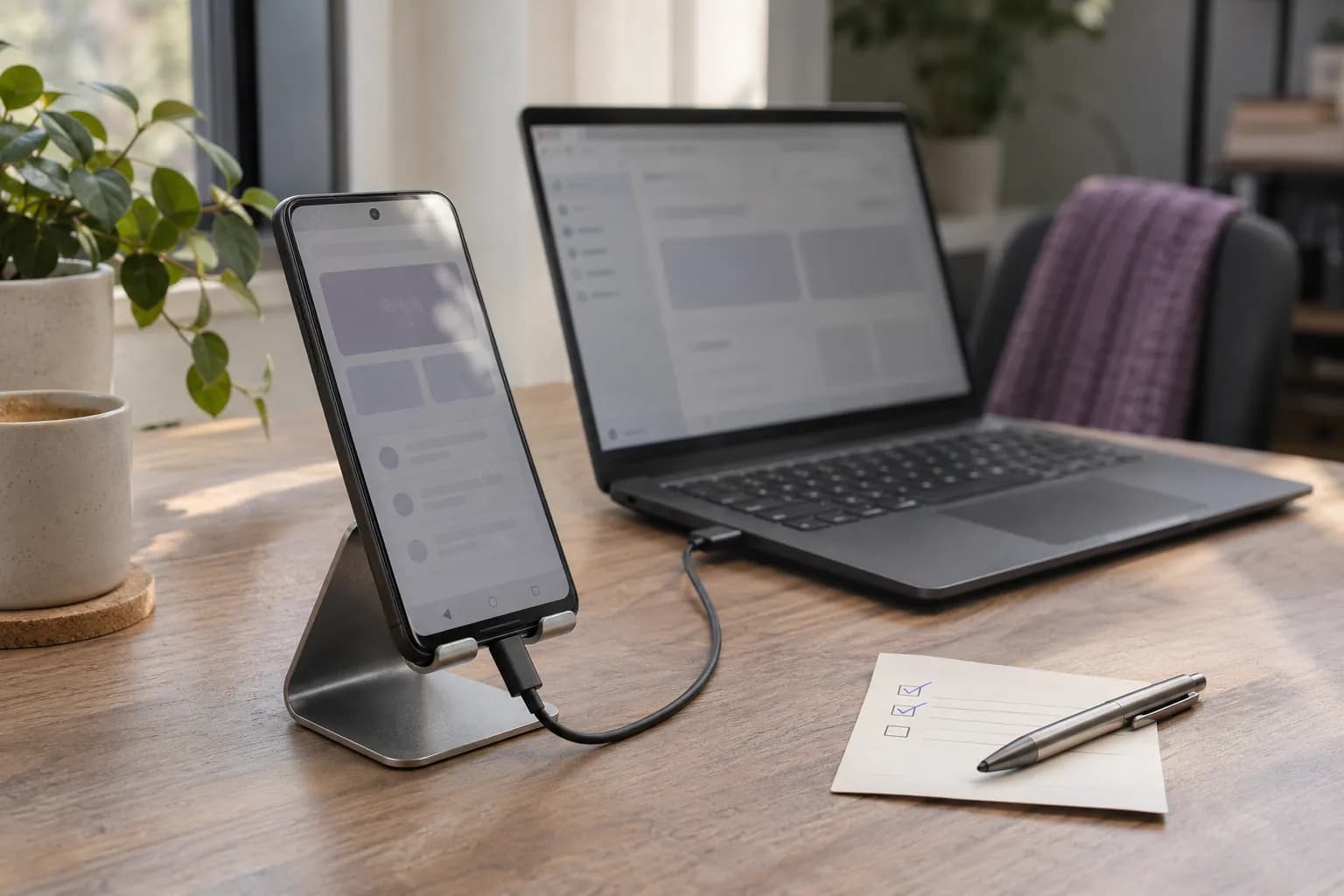
An APK is an Android app file you can install straight onto a phone. Open Build & Download and start an Android test build. It moves through Queued → Preparing → Compiling → Signing → Uploading → Done and usually takes 4–6 minutes, and we email you when it's ready.
Turn on the public share link in Overview (new apps start with it off), open the share page and scan its QR code. Try every tab, sign in, send a form, and switch on flight mode to see the offline page.
Step 7: Build the store version and back up your signing key
An Android App Bundle (AAB) is Google Play's publishing format: Play generates optimised APKs for each device from it, and new apps have had to use it since August 2021 (Android Developers). An AppSorcerer store build gives you a signed AAB plus an APK, from the Starter plan.
The first store build creates your app's signing key and stores it encrypted. Google Play expects every update to be signed with the same upload key, and replacing a lost one means asking Google for a reset (Android Developers). Download a backup from the build page, or upload your own key before the first store build. The Android builds guide explains each build type.
Last checked: 12 November 2026.
Step 8: Publish on Google Play
AppSorcerer prepares the build, and you upload it in Play Console yourself. First fill in the Publish page in App Studio:
- Add the app name, short and full descriptions, category and contact email.
- Add a privacy policy URL, which both stores require.
- Upload screenshots of your app's real screens.
- When the readiness checklist turns green, copy the listing into Play Console and upload your AAB.
Prefer not to? Our publishing service prepares the listing, screenshots and Data safety form and answers app reviewers for a one-time $149. Nothing is charged when you send the request; we email a payment link.
Closed testing for new personal accounts
Personal accounts created after 13 November 2023 must run a closed test with at least 12 testers opted in for 14 consecutive days before applying for production access. Google then asks about your test, your app and how you decided it was ready, and review "usually takes seven days or less" (Play Console Help). Our guide to the Google Play 12-tester rule covers recruiting testers and answering those questions.
Last checked: 12 November 2026.
Data safety, target API level and developer verification
- Data safety: every app on Google Play must complete the Data safety form and link a privacy policy, even if it collects no user data (Play Console Help). Declare what your website and plugins collect too.
- Target API level: since 31 August 2026, new apps and updates must target Android 16 (API level 36) or higher (Android Developers). AppSorcerer's Android template targets API level 36.
- Developer verification: Google began rolling out developer verification on certified Android devices in select regions on 30 September 2026 (its timeline names Brazil, Indonesia, Singapore and Thailand first) and plans a global rollout in 2027. Play developers who completed Play Console verification are already verified (Android Developers Blog).
Last checked: 12 November 2026.
Will Google Play accept a website app?
Yes, if it is more than a website in a frame and you have the right to use the site. Google's spam policy doesn't allow apps whose primary purpose is to "provide a webview of a website without permission from the website owner or administrator" (Play Console Help), and Google calls webviews made mainly to drive traffic "webview spam" (Android Developers Blog, October 2020). No builder can guarantee approval; our WebView approval checklist covers what to add.
Last checked: 12 November 2026.
What does it cost?
| Item | Price | What you get |
|---|---|---|
| AppSorcerer Free | $0 | Android test builds with a watermark, 1 app, 5 builds a month |
| AppSorcerer Starter | $29 a month | Android store builds (AAB), no watermark, custom bundle ID |
| AppSorcerer Growth | $79 a month | 3 apps, push automations, up to 5 premium plugins |
| Google Play registration | $25 one time | Paid to Google |
AppSorcerer prices are from our pricing page; Google's fee is from Play Console Help. The publishing service is an optional $149 one-time extra.
Last checked: 12 November 2026.
Frequently asked questions
Can I convert my website to an Android app for free?
You can build and install a test version for free. The Free plan makes Android test APKs with a watermark, for 1 app and up to 5 builds a month. Publishing on Google Play needs a store build, from the Starter plan, plus Google's $25 one-time fee.
Do I need Android Studio or code?
No. You set everything up in App Studio and download finished builds. Developers can add custom CSS or JavaScript, or call native features through the JavaScript bridge, but none of that is required.
Will my app update when I change my website?
Your pages and content update straight away, because the app loads your live site. The icon, tabs, push settings, permissions and plugins are built into the app, so they reach people with your next build and Play release. Some settings on the WebView page are marked Live and reach installed apps the next time they open.
Can my website app send push notifications?
Yes. Connect OneSignal or Firebase Cloud Messaging, build the app, and send campaigns. On Android 13 and later, each person must allow notifications first. The Free plan includes 10,000 pushes a month.
What's the difference between an APK and an AAB?
An APK is an installable app file you can put straight onto a phone, which is what a test build is for. An AAB (Android App Bundle) is the format you upload to Google Play, which builds device-specific APKs from it. New apps on Google Play must use AAB.