How to Make an App From a Website on iPhone
The real steps to turn any website into a Home Screen web app on iPhone with Safari's Open as Web App, what changed in iOS 26, how web push works, and when you need a proper App Store app instead.
On this page
- How do you make an app from a website on iPhone?
- How can you tell it worked?
- What changed in iOS 26?
- Can a Home Screen web app send push notifications?
- What can't a Home Screen web app do?
- When do you need a real App Store app?
- Frequently asked questions
- Is Add to Home Screen the same as downloading an app?
- Can I make an iPhone app from a website for free?
- Why can't I find Add to Home Screen?
- Does AppSorcerer make iPhone apps, or is that coming soon?
You can make an app from a website on iPhone without writing code, paying Apple or waiting for review. Safari has done a basic version of this for years. Since iOS 26 it's become genuinely useful, because any site you add to the Home Screen can now open full screen in its own window, like an app. What it can't do is put you in the App Store, and that difference matters more than most guides admit.
Short answer: Open the site in Safari, open the Share menu, tap Add to Home Screen, keep Open as Web App switched on and tap Add. On iOS 26 and later, any site added this way opens full screen like an app, and it can send push notifications if the site supports web push. For an App Store listing, you need a real native app.
How do you make an app from a website on iPhone?
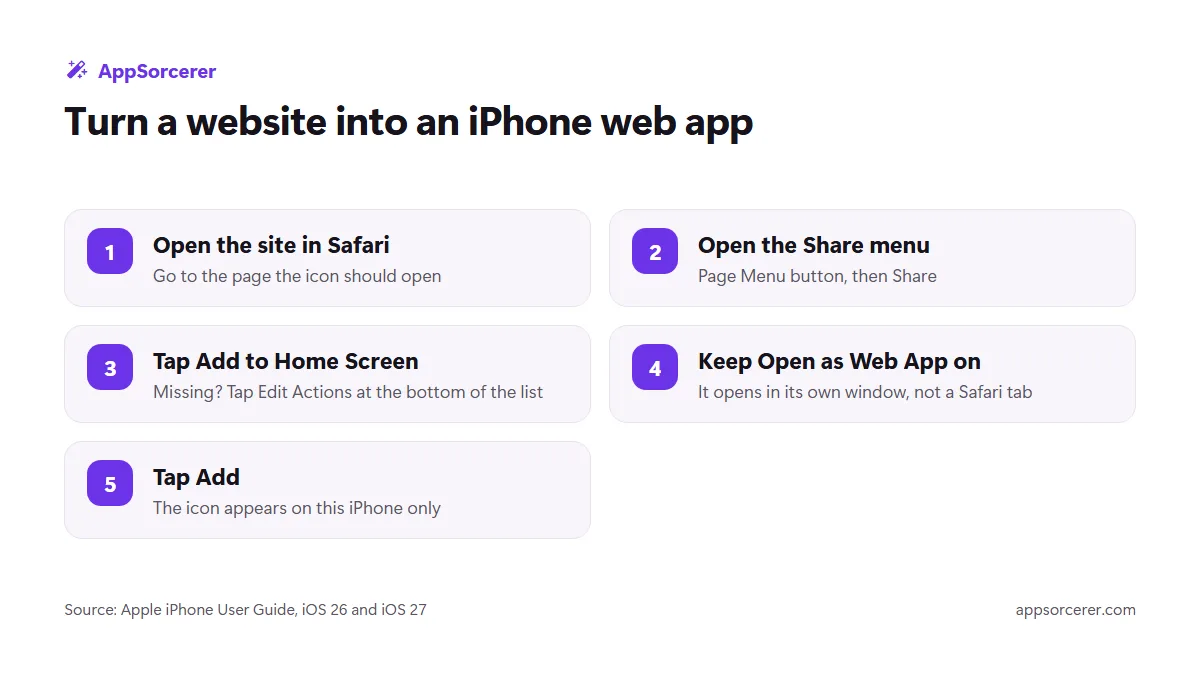
These are Apple's current steps for iOS 26 and iOS 27 (Apple Support):
- Open the website in Safari. Go to the exact page you want the icon to open, usually the home page.
- Open the Share menu. Tap the Page Menu button, then Share. If your Safari tabs are set to the Bottom or Top layout, tap the Share button directly.
- Tap Add to Home Screen. It's further down the list. If it isn't there, scroll to the bottom, tap Edit Actions and add it.
- Keep Open as Web App on. This is what makes the site open in its own window instead of a Safari tab.
- Check the name and tap Add. You can rename it. The icon appears on that one device only.
Safari isn't the only option. Since iOS 16.4, other browsers can offer Add to Home Screen from their own Share menu too, and the result behaves the same way (WebKit).
How can you tell it worked?
Close Safari and tap the new icon. A web app opens without Safari's address bar and shows up as its own card in the App Switcher, separate from your browser. If it opens inside a normal Safari tab instead, the switch was off when you added it. Delete the icon and add the site again.
What changed in iOS 26?
Before iOS 26, the website decided what you got. A site with a web app manifest (or Apple's older meta tag) opened as a web app. Every other site opened in the browser like a bookmark, and nobody could tell in advance which they'd get.
Apple flipped that in iOS 26. Every website added to the Home Screen now opens as a web app by default, and you can switch Open as Web App off if you'd rather have a plain bookmark. WebKit's own summary is that there are now zero requirements for "installability" in Safari (WebKit).
If it's your own site, two small things still make a difference:
- A proper icon. Add an apple-touch-icon or list icons in a web app manifest. Without one, iOS falls back to a generated icon (a letter monogram on recent versions), which won't look like your logo.
- A manifest with your app's name and colours. It's no longer required, but WebKit still uses it when it's there.
Can a Home Screen web app send push notifications?
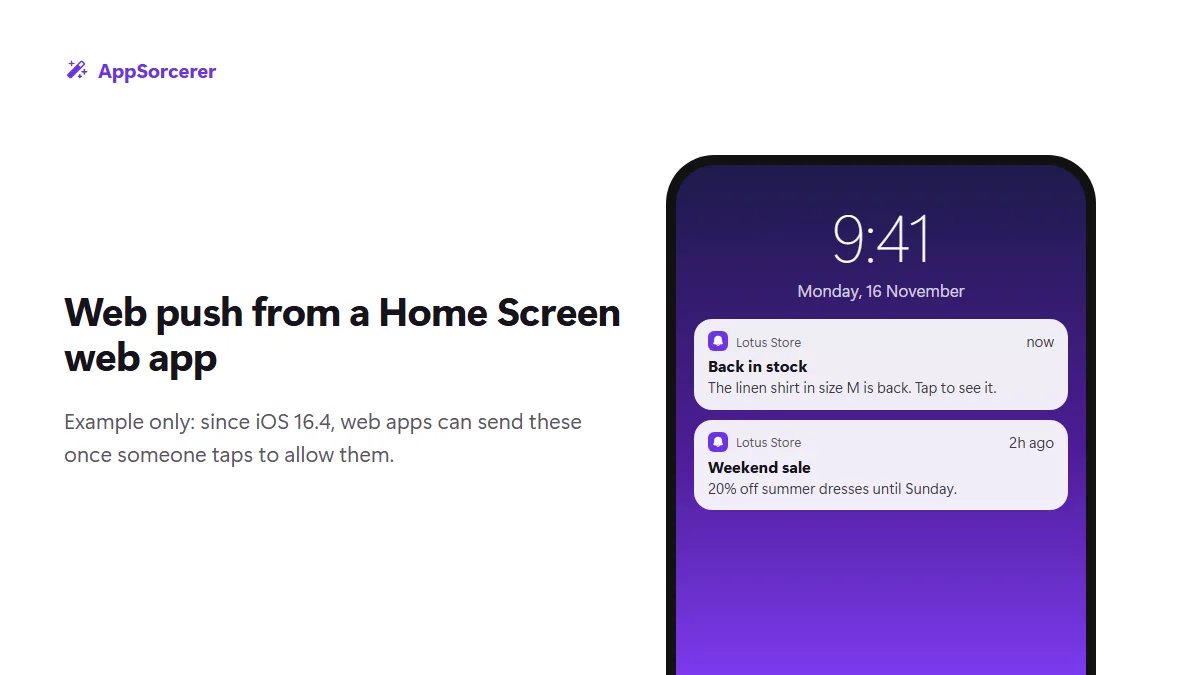
Yes, and this is the part many guides skip. Since iOS 16.4, a web app added to the Home Screen can receive standard Web Push notifications. They appear on the Lock Screen and in Notification Center, and on an Apple Watch if one is paired. People manage them per app in Settings, the same as for any other app. You don't need an Apple Developer Program membership to send them.
There are two conditions. First, your site has to support web push: a service worker plus the Push and Notifications APIs. Second, the web app may only ask for permission in response to a tap, such as a "Notify me" button. A request made on page load, without a tap, won't get a prompt.
Once notifications are allowed, the web app can also put a badge count on its Home Screen icon through the Badging API, the little red number people already know from other apps. For a shop, that's a quiet nudge about an unread offer or a saved cart.
What can't a Home Screen web app do?
Plenty. Here's the honest comparison with an app from the App Store:
| Home Screen web app | App Store app | |
|---|---|---|
| How people get it | They add it themselves from the browser | Search, tap Get |
| Install prompt | None on iPhone | The App Store page |
| Listing, ratings, search | No | Yes |
| Push notifications | Web Push, after a tap on a button | Native push |
| Signed-in session | Separate from Safari; expect to sign in again | The app's own |
| Cost | Free | Apple Developer Program at US$99 a year, plus building the app |
| Review | None | App Review |
Two rows deserve a closer look. Discovery is the big one: there's no install button on iPhone, so people only do this if you tell them how (web.dev). And because each Home Screen web app keeps its own storage, a customer who was signed in on Safari usually has to sign in again inside it. Before you promote the web app, add your own site on a real iPhone and run through sign-in, the cart and every payment method, since they now run outside a Safari tab.
For a shop, that makes the web app a nice extra for your most loyal customers, not a replacement for an app. Put a short "Add us to your Home Screen" banner on your account page with the steps above, and expect only motivated people to follow them.
When do you need a real App Store app?
When you want to be found in the App Store, when you want native push without asking people to install anything from the browser first, or when you need device features beyond what Safari's web APIs offer.
That route has real costs. The Apple Developer Program is US$99 a year, and every app goes through App Review. Apple's minimum functionality rule (guideline 4.2) asks for features, content and interface that take an app beyond a repackaged website, so a bare wrapper of your site risks rejection (App Review Guidelines). Native navigation, push and offline handling are the usual answer.
If you're weighing a website-to-app builder for this, be clear about what's available today. AppSorcerer doesn't build iPhone apps yet: iOS builds and App Store publishing are coming soon. What you can do now is design the iOS look in App Studio and preview it in the browser.
On Android, the same idea already works end to end. You turn your site into a native app with bottom tabs, push notifications and an offline page, then publish it on Google Play under your own developer account. Our guide to turning a website into an Android app covers that path, and WebView vs native app helps if you're unsure which approach suits your site.
A sensible plan for a store owner today: launch the Android app, offer the Home Screen web app to customers on other phones, and add the App Store app when you're ready for it.
Frequently asked questions
Is Add to Home Screen the same as downloading an app?
Not quite. With Open as Web App on, the site opens full screen in its own window and can send notifications, but nothing is downloaded from the App Store and the content still comes from the website.
Can I make an iPhone app from a website for free?
A Home Screen web app is free and takes a minute. An App Store app is not: Apple's developer membership alone costs US$99 a year, before any build or developer costs.
Why can't I find Add to Home Screen?
It may be hidden in the Share menu. Scroll to the bottom of the list, tap Edit Actions and add it, as Apple's steps describe. The Open as Web App switch arrived with iOS 26, so older versions don't show it.
Does AppSorcerer make iPhone apps, or is that coming soon?
Not yet. iOS builds and App Store publishing are coming soon, and you can already design and preview the iOS look in App Studio. Android apps work today.
Want an app your customers can find on Google Play while the iPhone side catches up? Start free with an Android test build, or compare plans on the pricing page.