Google Play Closed Testing vs Internal Testing
Internal testing is fast and limited to 100 testers; closed testing needs full app setup but is the only track that meets Google's 12-tester rule. How the tracks differ, the tester trap, and the order to use them.
On this page
- Closed testing vs internal testing: what's the difference?
- When should you use internal testing?
- When do you need a closed test?
- Can one person be in both the internal and closed test?
- Where does open testing fit?
- What order should a new personal account follow?
- Testing an AppSorcerer app on these tracks
- Frequently asked questions
- Do internal testers count toward the 12 testers?
- Does Google review internal test releases?
- How many testers can a closed test have?
- Why can't my testers find the app on Google Play?
- Can I run internal and closed tests at the same time?
Every Android app passes through at least one of Google Play's test tracks before launch, and the two that people confuse most are internal and closed. Closed testing vs internal testing isn't a matter of taste. The tracks have different tester limits and setup rules, and only one of them counts towards Google's production rule for new personal accounts. Pick the wrong one first and you can lose days.
Short answer: Internal testing is a fast track for up to 100 people you trust: new builds reach them within minutes, and you can start before your store listing is finished. Closed testing reaches a larger invited group, needs your app setup completed, and is the only track that satisfies the 12-tester, 14-day rule for new personal accounts. Start internal, then move to closed.
Closed testing vs internal testing: what's the difference?
All three test tracks live in Play Console under Test and release > Testing, next to production. Here's how they compare, based on Google's testing tracks guide and its testing requirements page for new personal accounts:
| Internal testing | Closed testing | Open testing | |
|---|---|---|---|
| Who can join | Up to 100 testers per app, added by email | Email lists of up to 2,000 people, Google Groups or organisations | Anyone on Google Play, or a cap of at least 1,000 |
| App setup needed first | No | Yes | Yes |
| New personal accounts | Available from day one | Required before production | Only after production access |
| New builds reach testers | Within minutes | First release can take hours | First release can take hours |
| Paid apps | Free for testers | Testers pay | Testers pay |
| Found by Play search | No, share a link | No, share a link | Yes |
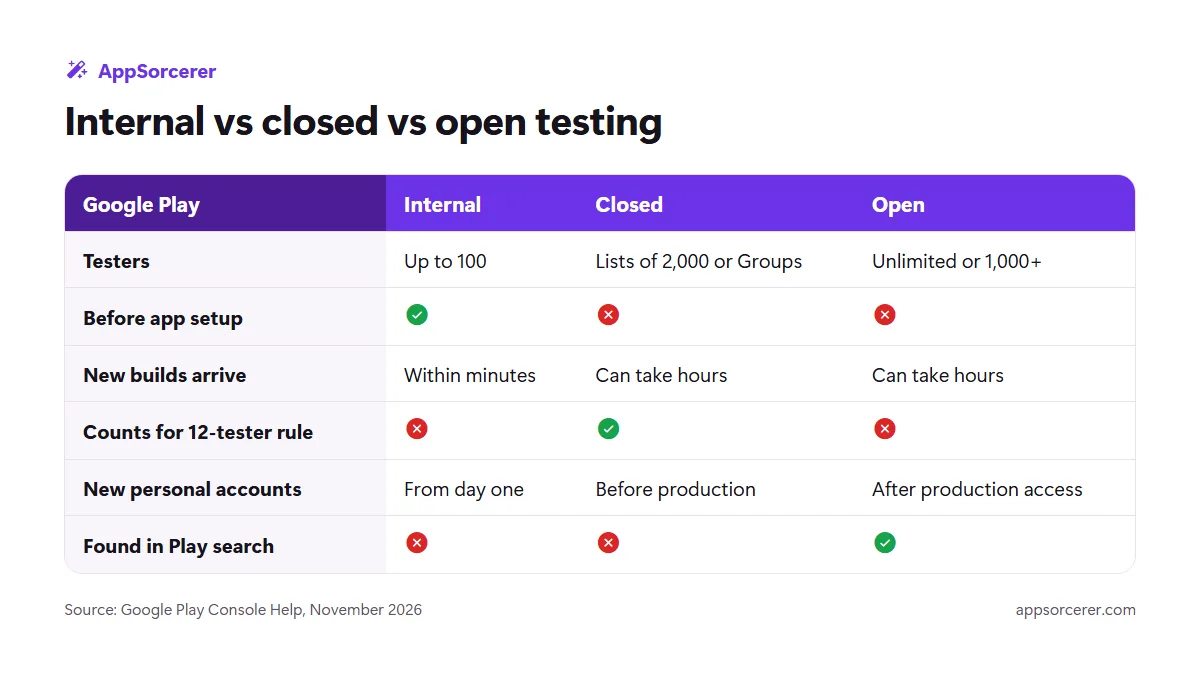
The short version: internal testing trades reach for speed, closed testing trades speed for a real-world audience, and open testing is a public beta.
When should you use internal testing?
Use it for your very first build and for quick checks after that. Internal testing is the only track you can open before the app's setup is complete, so you can put a build on real phones while you're still writing the listing. On a first upload Google shows a temporary app name for up to 48 hours, which is fine for a team test.
It suits three situations:
- Smoke tests by your team. Does the app open, sign in, load the cart and handle a lost connection?
- Device spot checks. Testers can be anywhere, even in countries where the app isn't on sale, and Google's device exclusion rules don't apply to them.
- Post-launch debugging. You can keep an internal track running next to production to try a fix before customers see it.
One decision deserves care before that first upload: the package name. Google says package names are unique and permanent, and once you upload a bundle for an app, its package name can't change. Settle on it (for example com.yourshop.app) before you build.
Keep in mind that internal releases might skip Google's standard policy and security reviews. A build that works internally hasn't passed review yet.
When do you need a closed test?
If your personal developer account was created after 13 November 2023, closed testing isn't optional. Production and pre-registration stay locked until a closed test has had at least 12 testers opted in for the previous 14 days without a break. You then apply from the Dashboard and answer Google's questions about the test, the app and its readiness. Our 12-tester closed testing guide covers recruiting and those answers in detail, so we won't repeat them here.
Closed tests are useful even when Google doesn't force them. Organisation accounts can run a customer beta with:
- Email lists: up to 2,000 testers each, up to 50 lists per track and 200 per developer account.
- Google Groups: only members can join, and Google sets no limit on group size.
- Extra closed tracks: click Create track to give staff and VIP customers separate tracks, though extra tracks don't support country targeting.
Testers can send private feedback through Google Play, and nothing they say touches your public rating. Read it under Monitor and improve > Ratings and reviews > Testing feedback.
Can one person be in both the internal and closed test?
This is the trap that catches small teams. Google says anyone who opts in to your internal test stops being eligible for your closed and open tests, even if their email is on those lists. They keep receiving only the internal build. To switch, they have to opt out of the internal test first and then opt in to the closed one.
Picture a shop owner who puts five staff on the internal track, then adds the same five to the closed test list alongside seven customers. On paper that's 12. In practice, the five staff never get the closed build. Google's help pages don't say they count, and they can't actually test it.
So keep the two groups separate, or ask your staff to leave the internal test before day one of the 14.
Where does open testing fit?
Open testing is a public beta: your test version shows up on Google Play and anyone can join, up to a limit you set (at least 1,000) or without a limit. Apps with no production version can be found through search; apps already live let people opt in from the store listing.
For a new personal account, open testing only becomes available after you've gained production access, so it can't replace the closed test. Most small store apps skip it altogether. It earns its keep when you're testing a big change with a large audience before rolling it out to everyone.
What order should a new personal account follow?
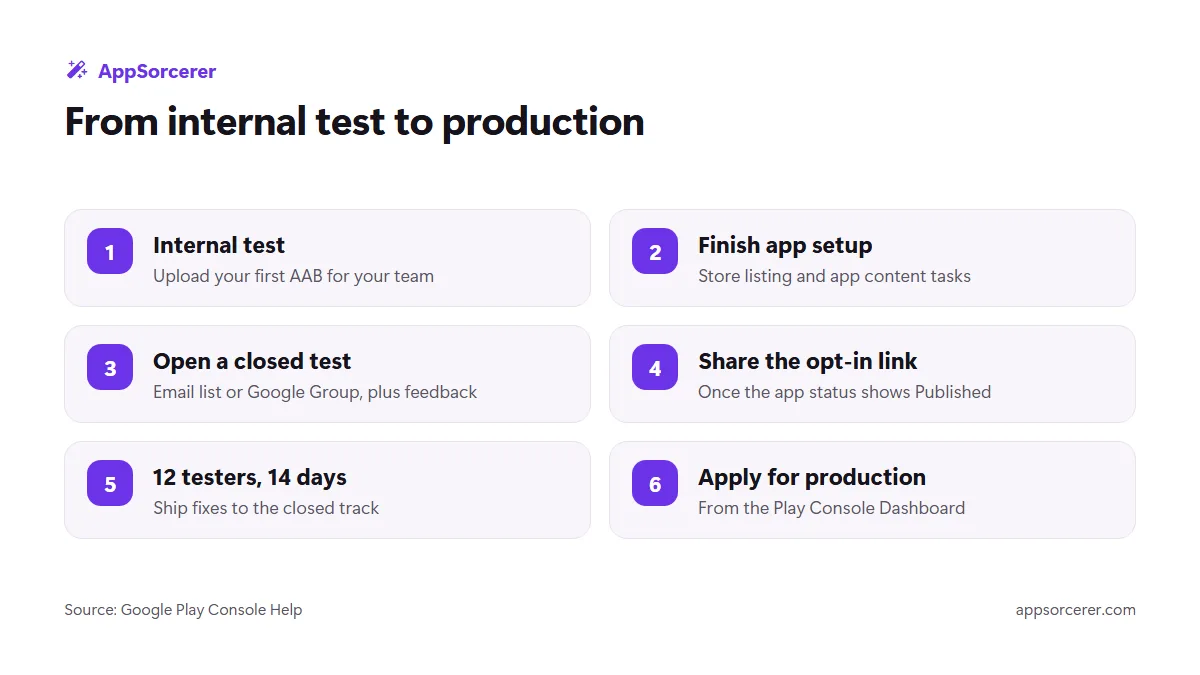
- Upload your first Android App Bundle to Internal testing and install it on your team's phones.
- Finish the store listing and app content tasks on the Dashboard. The store listing is shared across all tracks.
- Open Closed testing > Manage track, add an email list or Google Group, and give testers a feedback email or URL.
- Roll out a release and send the opt-in link once the app status reads Published. The first link can take several hours to work.
- Keep at least 12 testers opted in for 14 straight days, shipping fixes to the closed track as feedback arrives. Every update needs a higher version code.
- Apply for production from the Dashboard.
Testing an AppSorcerer app on these tracks
AppSorcerer's Free plan gives you Android test builds (APK) that you install straight onto your own phone. That's handy for checking the app before anyone else sees it, but it happens outside Google Play, so it doesn't count on any track.
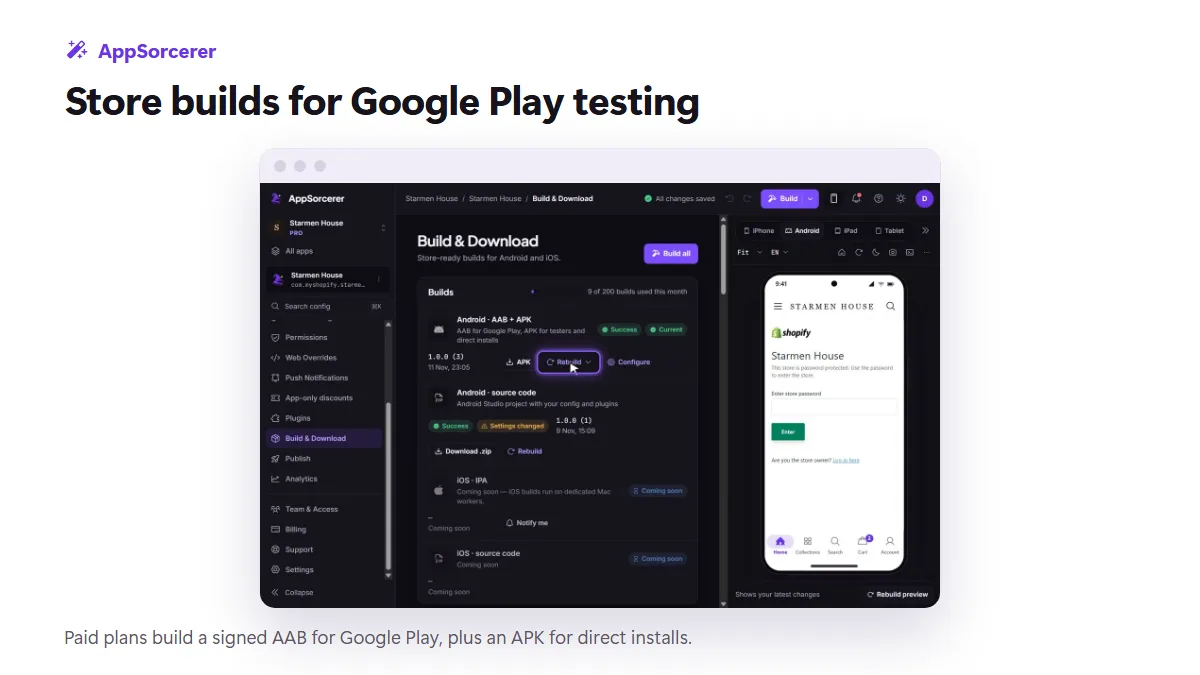
For Google Play's tracks you need a store build. From the Starter plan ($6 a month), App Studio produces a signed Android App Bundle (AAB) plus an APK. Upload the AAB to internal testing first, then to your closed track when the team is happy. The Android builds guide explains each build type.
Frequently asked questions
Do internal testers count toward the 12 testers?
Plan as if they don't. Google's rule is written around a closed test, and anyone still in your internal test isn't eligible for the closed build at all. Recruit 12 or more people for the closed track itself.
Does Google review internal test releases?
Google says internal tests might not go through its standard policy and security reviews, which is part of why they arrive so fast. Don't read a working internal build as a sign the app will pass review later.
How many testers can a closed test have?
Each email list holds up to 2,000 testers, and a track can use up to 50 lists. Google Groups have no size limit, so a group is the easier route for a large customer beta.
Why can't my testers find the app on Google Play?
Before production, internal and closed test apps don't appear in Play search, so testers need your link. The opt-in link only appears once the app status is Published, and the first one can take hours. Anyone still in your internal test won't see the closed version until they opt out.
Can I run internal and closed tests at the same time?
Yes. Google lets you run an internal test alongside several closed tests and one open test, each with its own version of the app. Just keep different people on each track.
Need a store build to put on these tracks? Compare the plans on our pricing page, or create a free account and try a test build on your own phone first.