How to Transfer Google Play Console Ownership
Google Play now lets most accounts switch owners after a 7-day hold, while monetising personal accounts must move apps instead. The steps for both routes, what moves with an app, and when a user invite is enough.
On this page
- Which kind of transfer do you need?
- How do you transfer Google Play Console ownership of the whole account?
- Who can't use the owner switch?
- How do you transfer apps to another developer account?
- What moves with the app, and what stays behind?
- Do you need a transfer at all?
- Frequently asked questions
- Can I transfer a Google Play developer account to another person?
- How long does a Google Play app transfer take?
- Do I lose downloads and reviews when I transfer an app?
- Does the new owner have to pay the US$25 fee?
- What if the current owner can't be reached?
People who search for how to transfer Google Play Console ownership usually mean one of three different jobs. You might want to move an app into someone else's developer account, hand the whole account to a new owner, or simply give a colleague or agency access. Google handles each one differently, and picking the wrong route can cost you weeks or a second registration fee.
Short answer: To move apps, the current owner submits an app transfer request with both accounts' registration transaction IDs, the receiving owner approves it, and Google support usually responds within two business days. To hand over the whole account, the owner uses Make account owner under Users and permissions, which starts a 7-day security hold. Monetising personal accounts can only move their apps.
Which kind of transfer do you need?
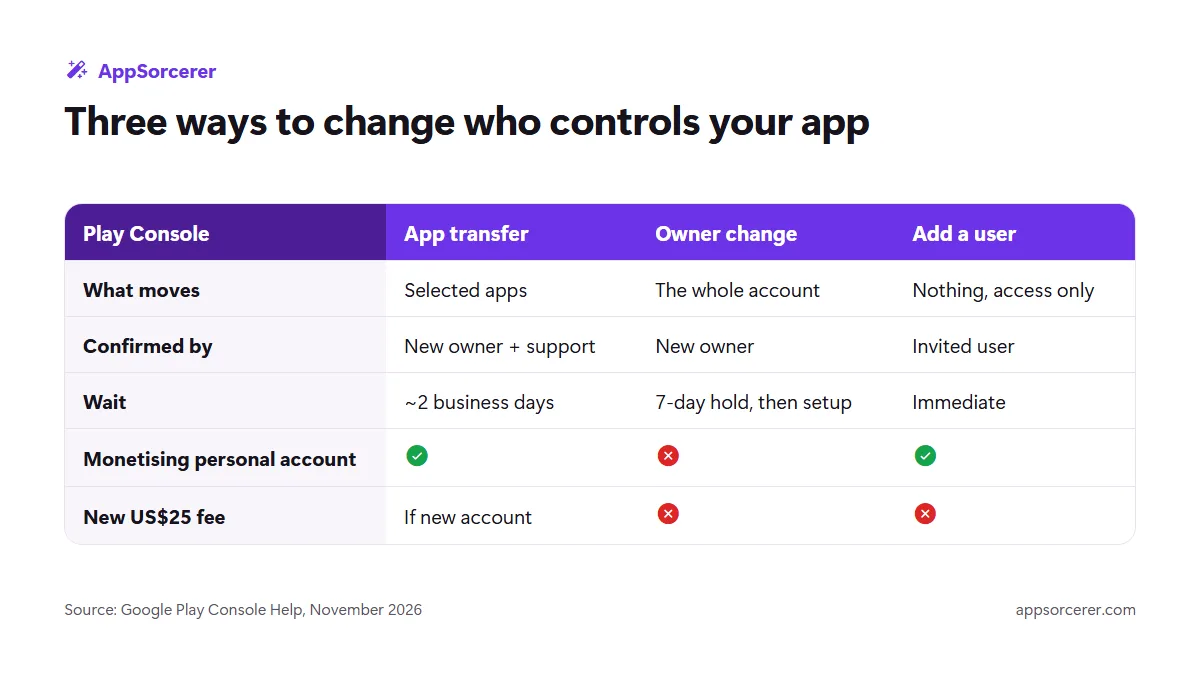
Older guides and forum answers still say Google only lets you transfer apps, never accounts. That changed: Play Console now has a self-serve owner switch for most accounts (Play Console Help: Transferring account ownership). Here's how the three options compare:
| App transfer | Change the account owner | Add a user or admin | |
|---|---|---|---|
| What changes hands | One or more apps | The whole developer account | Nothing; you grant access |
| Who starts it | The current account owner | The current account owner | The owner or an admin |
| Who confirms | The receiving account's owner, then Google support | The new owner, after a 7-day hold | The invited person accepts |
| Typical wait | Support responds within 2 business days of approval | At least 7 days | Immediate |
| Extra cost | A new receiving account costs US$25 | None stated by Google | None: users don't pay the fee |
| Best for | Selling an app, or moving it to a company account | A business changing hands, a new managing director | Agencies, developers, staff |
If you're a shop owner and an agency built your app, the third column is often all you need. Keep the account in your own name and invite the agency as a user.
How do you transfer Google Play Console ownership of the whole account?
Only the current owner can start an owner switch. The person taking over must already be a user on the account.
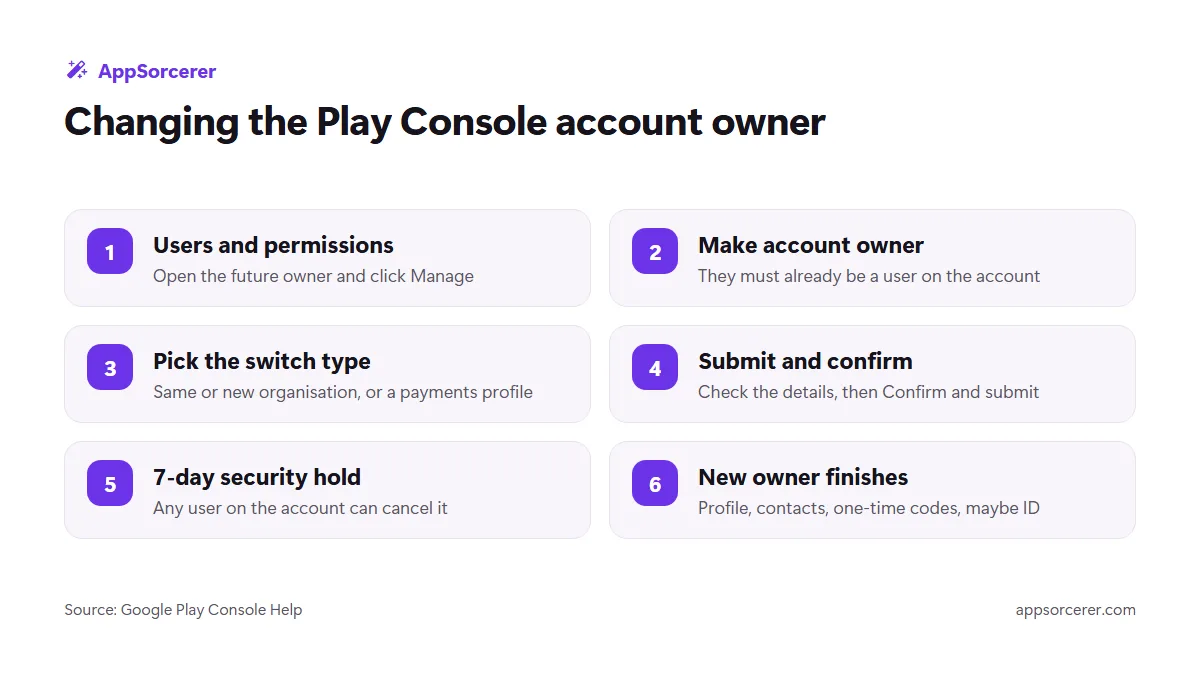
- In Play Console, open Users and permissions, find the future owner and click Manage.
- On their details page, choose Make account owner. Play Console tells you if that person can't be made owner.
- Pick the type of switch. For an organisation account, say whether the new owner belongs to the same organisation or a different one. For an individual account, the new owner selects or creates a payments profile, which Google uses only to verify identity.
- Click Submit account owner transfer, check the details, then Confirm and submit.
- Wait out the 7-day hold. Everyone on the account is notified, and any user can cancel during this window.
- The new owner gets an email, opens Users and permissions and works through a setup wizard: payments profile, organisation details where relevant, and contact and developer email addresses and phone numbers confirmed with one-time codes. Google may also ask for ID documents.
Who can't use the owner switch?
Google allows it for organisation accounts and for personal accounts that don't earn money on Play. A personal account that monetises its apps can't switch owners: the new person has to open their own developer account, and you move the apps across instead.
The switch can also be blocked when:
- the account has open verification tasks or isn't in good standing;
- a payments profile change, an account type change, an upload key reset or an app transfer is still pending;
- the future owner already owns a different Play Console account.
The last one trips up a lot of agencies, so check it before you start. If the current owner has disappeared and nobody can sign in as them, the self-serve route won't work; Google asks you to contact Play Console support instead.
How do you transfer apps to another developer account?
This is the route for selling an app, moving it from a freelancer's account into yours, or consolidating several accounts (Play Console Help: Transfer apps).
- Check both accounts. Both must be registered, active and compliant with Google Play policies. If you're transferring paid apps or apps with in-app products, the receiving account also needs an active payments profile.
- Find two transaction IDs. You need the registration transaction ID of each account. Search each owner's inbox for "developer registration fee", or open Google Payments, go to Activity and find the Google Play Developer charge. Remove any prefix such as "0.G." before you paste it.
- Download your reports. Earnings, payout and bulk export reports stay behind, so save what your accountant will need.
- Prepare linked services. Unlink Firebase from the old account and link it to the new one, add the new account as an Owner on your Google Cloud projects, and give it access in Google Analytics.
- Submit the request from the original account. The receiving owner approves it, and support then reviews it.
If you're on the reduced service fee tier, Google counts the app's earnings for that calendar year in both Account Groups' totals, so a big app can push the receiving group past the US$1M threshold sooner.
What moves with the app, and what stays behind?
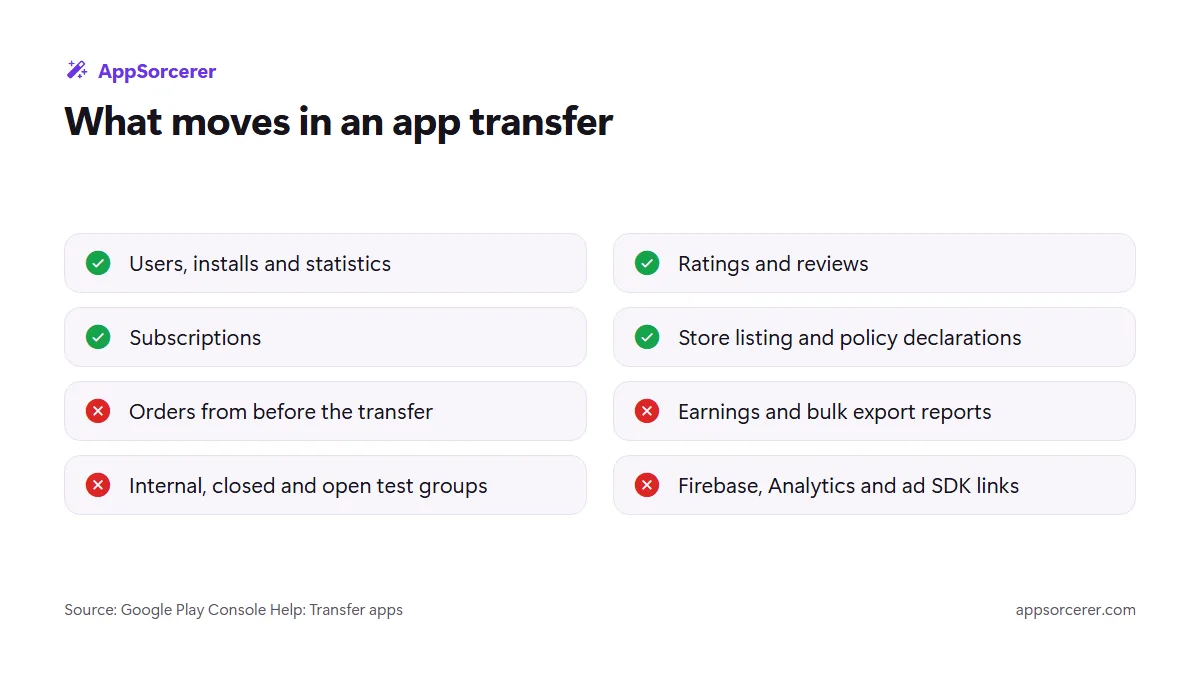
Moves with the app: your users and installs, statistics, ratings and reviews, subscriptions, the store listing, content ratings and the policy declarations you filed on the App content page.
Stays behind or needs redoing:
- Old orders. Orders placed before the transfer stay in the original account, so refunds for them have to come from there.
- Reports. Earnings, estimated sales and bulk export reports don't move; Google starts fresh ones in the new account.
- Promotions. They don't transfer, though promo codes you already issued keep working.
- Test tracks. Internal, closed and open test groups and internal sharing don't carry over. Recreate them, and expect testers to opt in again.
- Integrations. Firebase, Analytics and ad SDK settings need updating by hand. With AdMob, update the integration in your next build so ad revenue is credited to the right account.
Two more details matter. If the receiving account uses a different default currency, an app with in-app purchases is unpublished after the move until you check prices and publish it again. And if you're uneasy about keys, the new owner can ask for an upload key reset, or upgrade the app signing key for new installs.
Do you need a transfer at all?
Often not. An account owner or admin can invite anyone under Users and permissions, either as a full admin or with selected permissions, for every app or just one (Play Console Help: Users and permissions). You can also set an access expiry date, which suits a contractor hired for one launch.
Two limits are worth knowing. Only the owner can link a payments profile to sell paid apps, and only the owner can edit the payments profile page. Most other work, including releasing to production, can be granted as a permission.
This is why we recommend keeping the developer account in the business owner's name from day one. Apps built with AppSorcerer are published under your own Google Play account, whether you upload the signed builds yourself or pay for our publishing service. If you change builders or agencies later, there's nothing to transfer. Just keep the same package name (your bundle ID) for every future build, because a transferred or existing app can't switch to a new one.
Frequently asked questions
Can I transfer a Google Play developer account to another person?
Yes, in most cases. The owner chooses Make account owner under Users and permissions, and the change completes after a 7-day hold. Personal accounts that monetise apps are the exception: they have to move their apps to a new account instead.
How long does a Google Play app transfer take?
It starts once the receiving account's owner approves the request. Google says support reviews and responds within two business days after that, so allow a few days in total.
Do I lose downloads and reviews when I transfer an app?
No. Users, statistics, ratings, reviews and subscriptions move with the app. What you lose are old orders, earnings reports, promotions and test groups, which stay with the original account or have to be rebuilt.
Does the new owner have to pay the US$25 fee?
For an app transfer, the receiving developer account must exist, so a brand-new one costs US$25. Google says support can refund the original account's fee if you close it after the transfer. Users and admins you invite never pay it.
What if the current owner can't be reached?
The self-serve owner switch needs the current owner to start it. Without them, contact Play Console support through the Help section in Play Console, or Google's online form if you can't sign in.
Building an app you'll own outright? Start free and publish to your own Google Play account, or compare the plans on our pricing page.